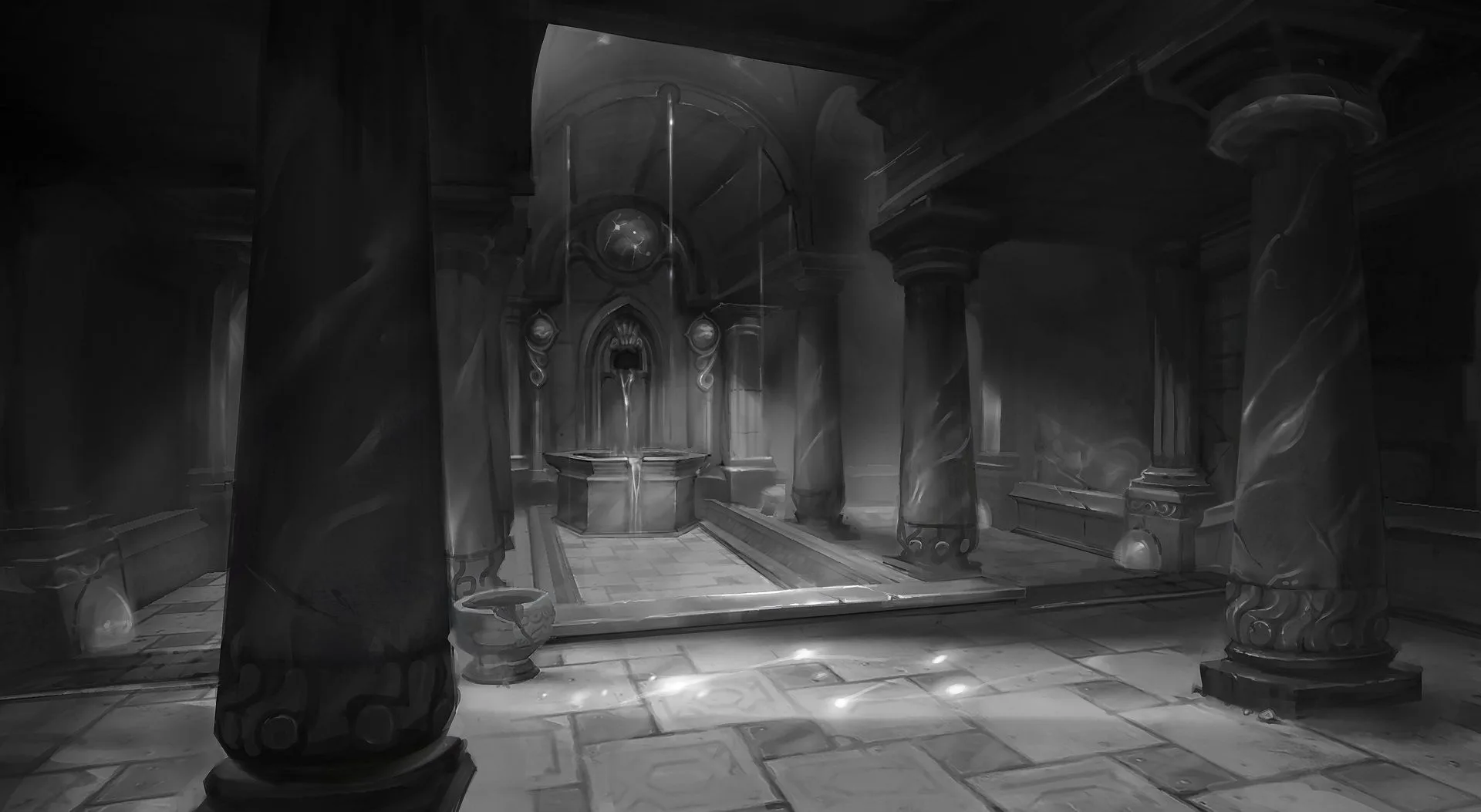
A clearer view of ElvUI.
Understand the settings. Follow the steps. Find the answer.
Guides
Follow the steps. Set up your interface and get things done.
Options Reference
Understand the settings and differences between WoW flavors.
FAQs
Find the answer to your everyday ElvUI questions.
Make it your own.
Start with a guide, then explore the options that shape your interface.
Explore Guides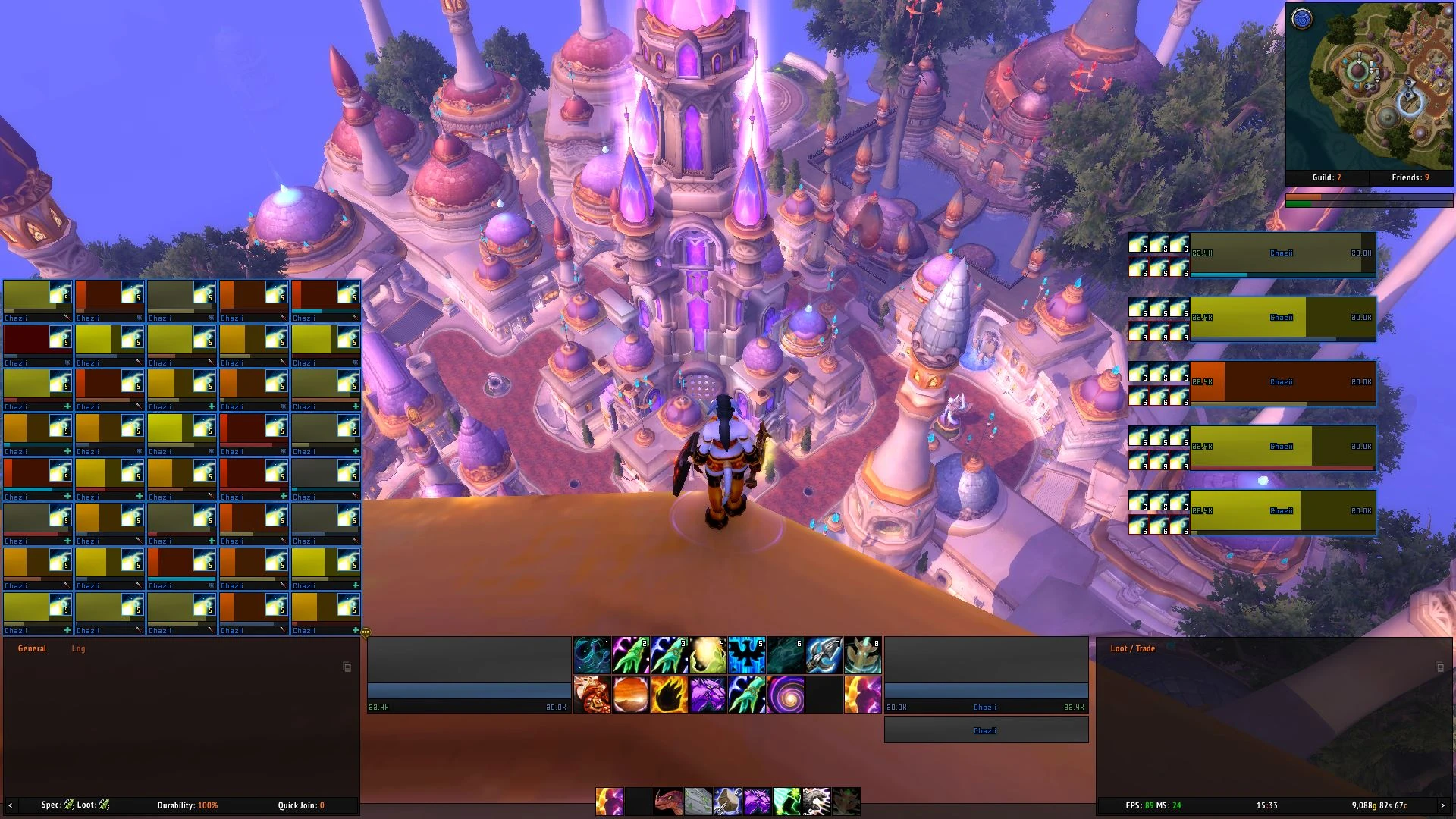
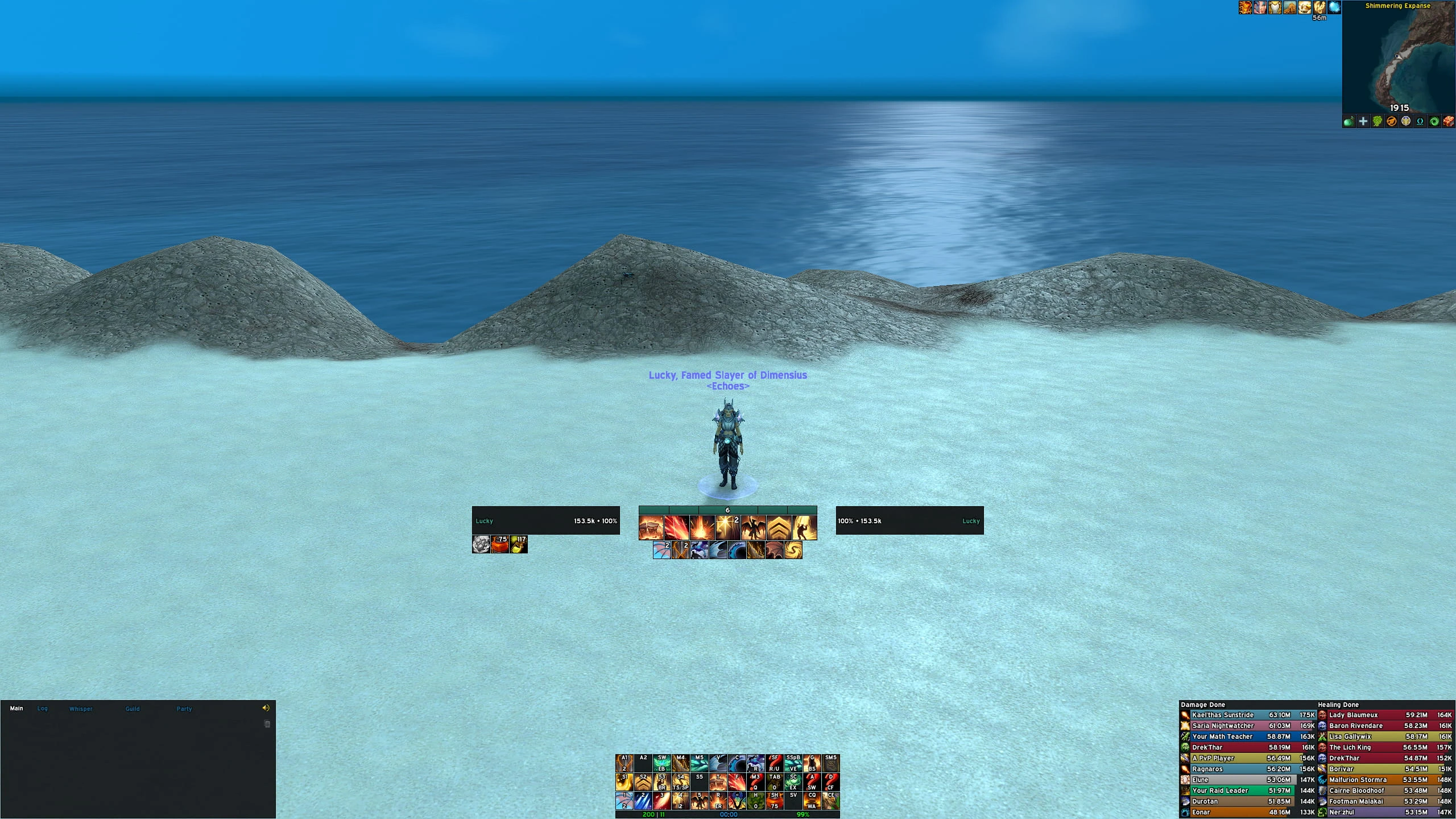
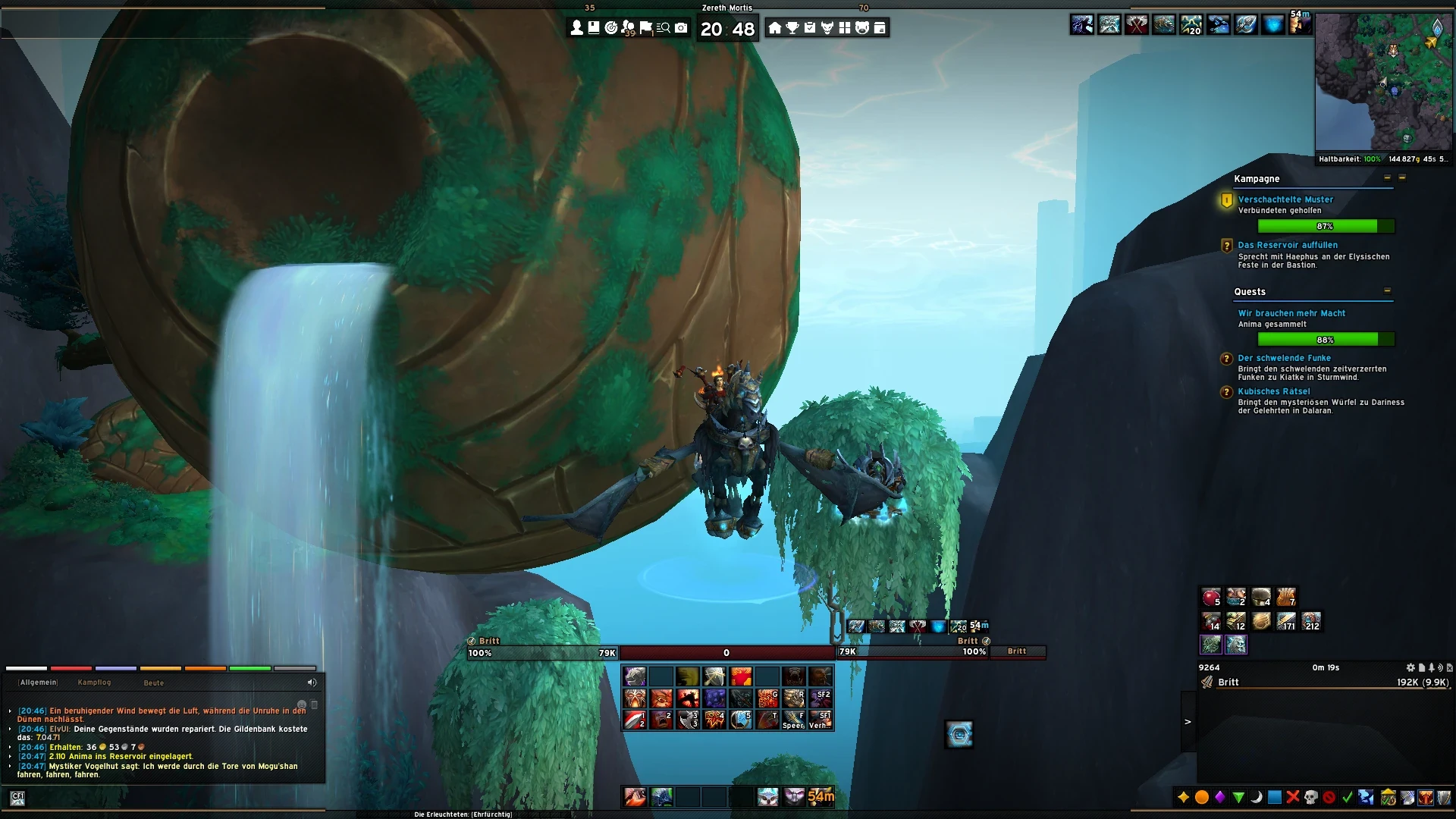
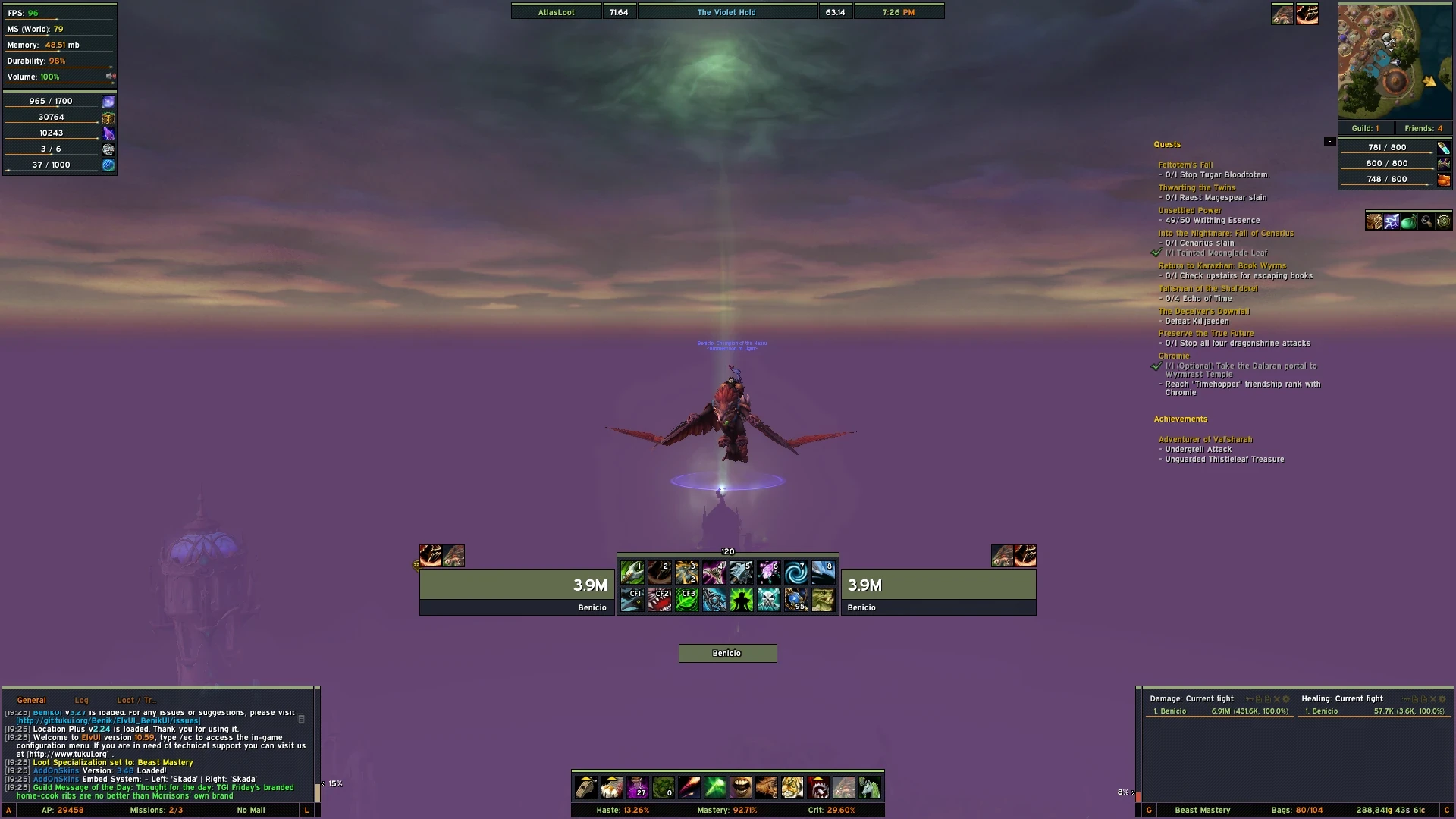
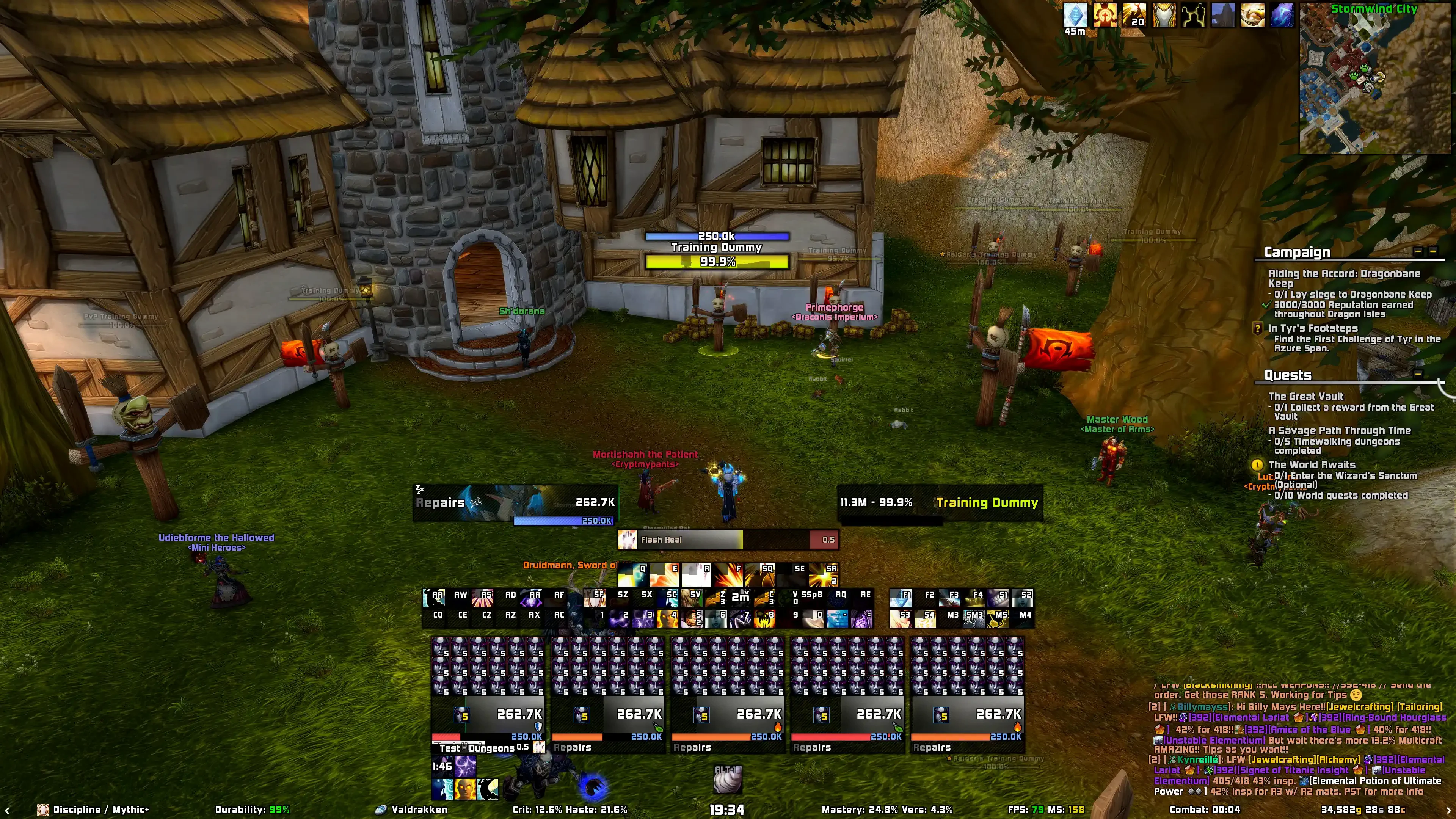
Common Questions
Where can I download ElvUI and Tukui?Are private-server or old expansion versions supported?Where should I ask for ElvUI or Tukui help?Essential Commands
A few shortcuts go a long way.
Type these into your in-game chat.
Open options
/ecThe starting point for changing your interface settings.
Also works: /elvui
Move your frames
/emoveReposition your interface elements, then toggle mover mode off when you are finished.
Also works: /moveui
Set your keybinds
/kbAvailable when ElvUI action bars are enabled. Hover an action button and press the key you want to bind.
Paste into your in-game chat.Line things up
/egridUse a grid as a visual reference while arranging your interface.
Paste into your in-game chat.Check your setup
/estatusFind version and setup information when asking for help.
Paste into your in-game chat.Find more commands
/ehelpKeep the in-game command reference close at hand.
Also works: /ecommands